Know why the face drifts, and stop re-describing
An AI video model has no memory of your character. Every time you type "a curly-haired guy in a mustard jacket" it draws a new person who fits the sentence, so the glasses change, the jacket gets a hood, and by video three he is a stranger. Longer prompts only change which stranger you get.
The fix is to stop describing the person and start pointing at them. You settle the design once, keep one picture as the answer key, and give that same picture to every Clip. In Character App the saved Character is that answer key. Everything below is how to make it a good one, and how to use it so the face holds when everything else changes.
Try thisBuild the character sheet: settle the design first
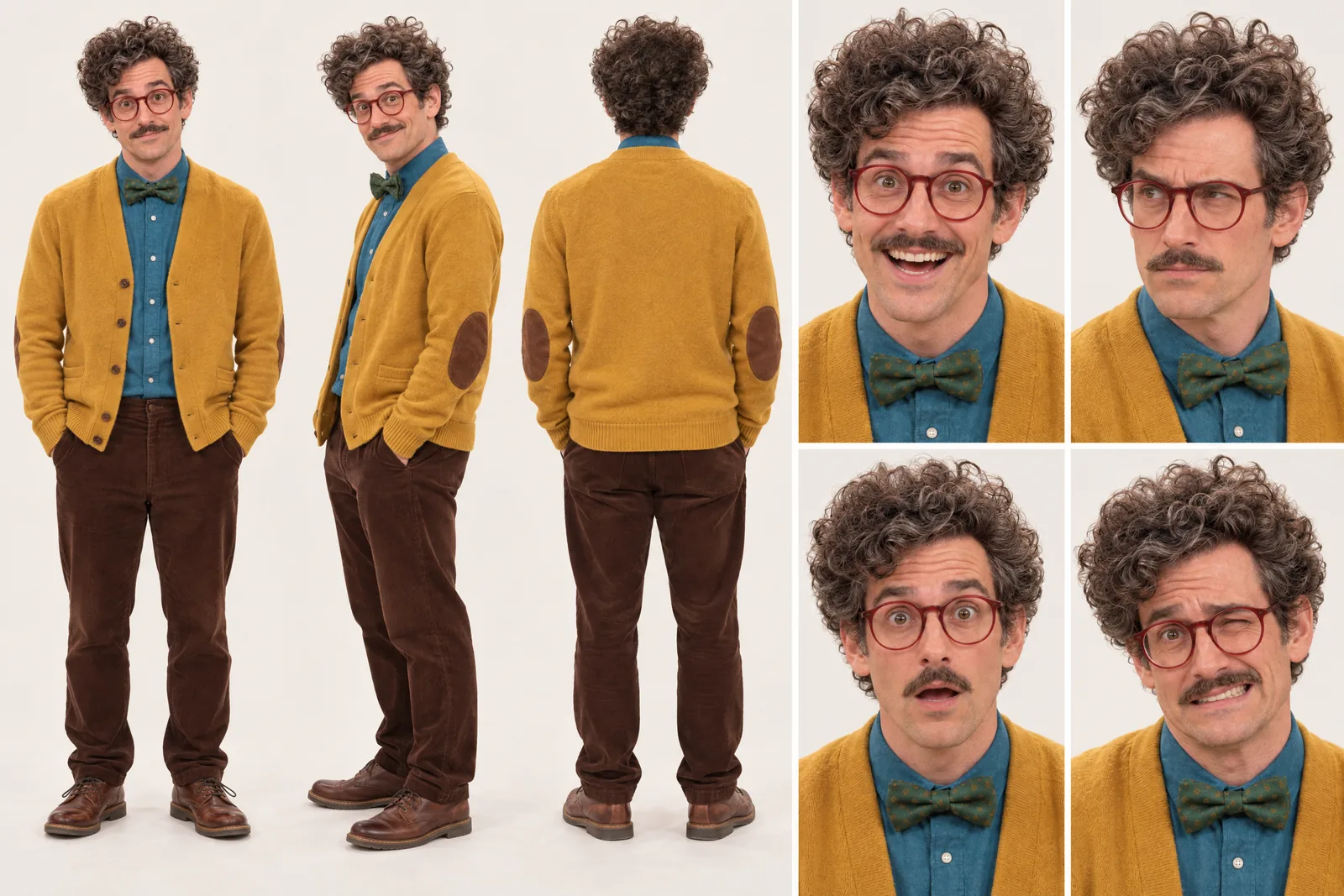
A character sheet is the model sheet animators draw so the twentieth frame matches the first: front, three-quarter, side and back views, plus a row of expressions. For an AI character it is the same job. Make New Character, describe the visible person (face shape, hair, glasses, jacket, build), then draw Images until you have the angles and moods you will actually need.
Judge each Image against your brief, keep the ones that match, and redraw the ones that do not. Add one locked identity detail that survives every costume, such as round red glasses or a teal backpack strap. A specific angle is a request rather than a guarantee, so check it. One honest note: Character App keeps the references with the Character; it does not export a formatted turnaround file. The character sheet page explains what is kept.
Pick one anchor frame and stop shopping
The anchor frame is the single keeper Image you will start your Clips from. Choose a clear, well-lit picture where the face is fully visible, the expression is neutral, the outfit is the one you want to see most, and the background is plain. A busy or partly hidden face gives every Clip a worse starting point.
Resist rotating between your five favourites. Different pictures average into a blur of the person, while one strong picture gives every Clip the same face to match. If the anchor is slightly off, redraw it before you film anything, because a Clip only inherits what the picture shows. Treat it as a reference that shapes appearance and the opening composition, not a pixel-exact first frame.
Film every Clip from the Character reference
Open the Playground, pick your saved Character and write one filmable event: a named subject, a plain verb and a visible object. "He hands a tiny parcel to a pigeon on a Lisbon tram, steady framing, calm expression." The Character reference carries who he is. Your words only carry what happens. A words-only Clip still films your selected Character, and Clips never film without one, so there is no step to forget.
By default new Clips use H3 Turbo reference-to-video at 3 Credits a second, so a 5-second Clip is 15 Credits, and the Make button shows the price before you press it. Searching for a Seedance character reference? Seedance 2 is an explicit model pick in the picker at its own per-second rate. The move is the same either way: start from the saved Character and read the price on the button.
Change the Look, not the person
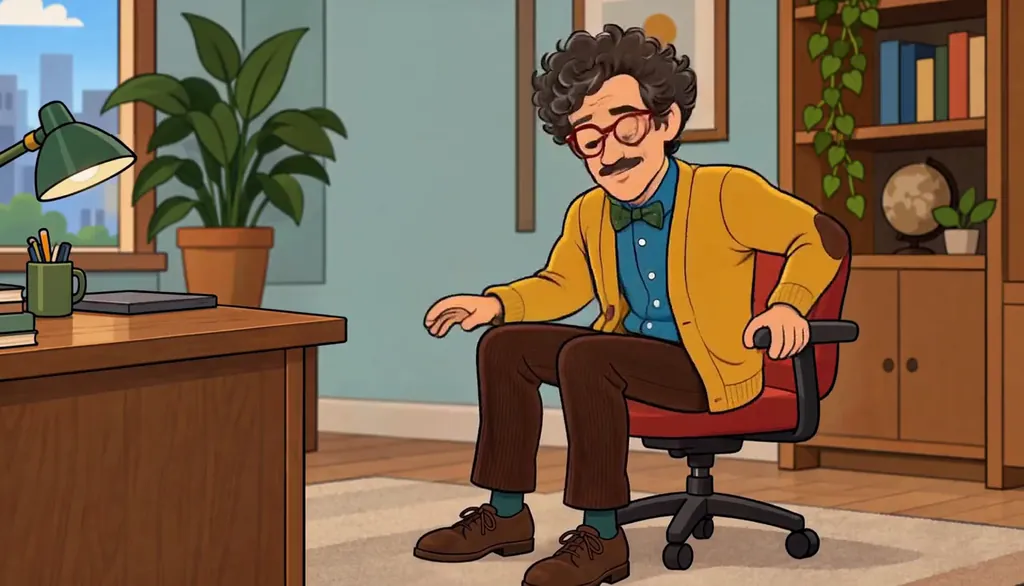
A Look is the style a Character or World is drawn in. The test of a strong character is whether you still recognise them after it changes. Milo Fenn, an original Character, appears below in six Looks: live action, anime, 3D animated, 2D cartoon, claymation and pixel art. The glasses, the curls, the beard and the mustard jacket survive every one.
Change one thing at a time. Keep the identity brief fixed, switch the Look, and compare against the anchor frame. If the glasses vanish in claymation, your identity detail is not strong enough, so add a bolder one. Inside a World, Characters follow the World’s Look, so choose the Look once there and every Character in it follows.

Milo Fenn · Milo, anime. Original character made for Character App’s character pages with gpt-image-2.5 and H3 Turbo Put the same character into a dance or a moving clip
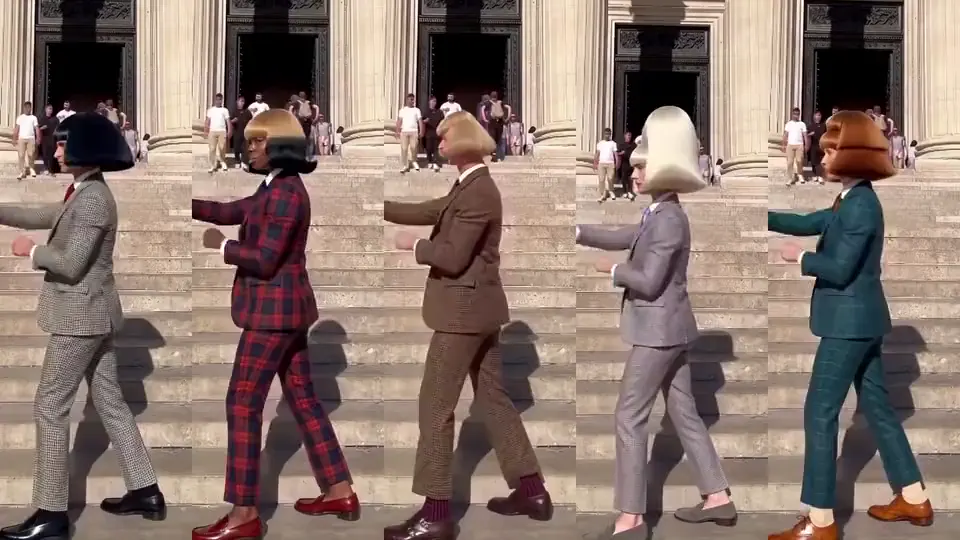
Once the face holds, give it moves. In the Playground, Star in a clip is where you put someone in a clip: you bring a short clip of a person moving and your Character performs it. With H3 the clip should be 5 to 10 seconds, one person in one continuous shot, and priced at the server-measured length. The same door is available to an AI agent as put_me_in_video. See how the MCP connector works.
Use your own face or an original Character, never someone else’s without their written consent. For the deadpan dance-and-shadowboxing format around Jean Phil, the Jean Phil playbook shows how to build your own deadpan Character for it. Review every result against the anchor frame before you post: face, hair, glasses, outfit, then movement.
Run a drift check, then budget the series
After every few Clips, put the anchor frame beside the newest still and tick four boxes in order: the identity detail, the face shape, the hair, the outfit. If one fails, fix the Character reference or redraw the anchor and film a New take. Do not paper over it by adding more words to the prompt.
Budget before you batch. At 15 Credits for a 5-second H3 Turbo Clip, the Starter plan’s 800 Credits ($19.99 a month) is about 4 minutes 26 seconds of Clips. That is about 53 five-second Clips if you spend nothing else. Draw Images first, since they are cheaper, and spend Clip Credits only on the keepers. Building a face for a posting calendar? See the AI influencer page, disclosure rules included.
Common mistakes
Re-describing the character in every prompt. Each description is a new roll of the dice, so use the saved Character and describe only the event.
Starting Clips from a different Image each time. Pick one anchor frame and stay on it until you decide to replace it on purpose.
An anchor frame with a half-hidden face, heavy shadow or a busy background. The Clip can only inherit what the picture shows.
Changing the Look, the outfit and the setting at once. When the face drifts you will not know which change caused it.
Judging consistency from one lucky Clip. Compare three or four Clips with the anchor beside them before you call it locked.
Questions
How do I keep the same AI character across videos?
Save the character once and film every Clip from that saved reference. In Character App you design them with New Character, keep one anchor frame, and make each Clip from the Character reference, so you describe only what happens in the shot.
What is an anchor frame?
It is the one keeper Image you start your Clips from: clear face, neutral expression, plain background, the outfit you want most. It shapes the character’s appearance and the opening composition, but it is a reference and not a pixel-exact first frame.
Do I need a character sheet?
It is the safest way to settle the design before you spend on Clips. Draw the angles and expressions you need as Images, keep the matches, and use them as the reference. Character App keeps those references with the Character, though it does not export a formatted turnaround file.
Can I use Seedance with a Character reference?
Seedance 2 is available as an explicit model pick in the Clip picker, at its own per-second rate, which is shown before you press. The default for new Clips is H3 Turbo reference-to-video at 3 Credits a second. In both cases the method is to start from your saved Character.
How much does it cost to keep a character consistent?
The method is a habit, not a plan tier. Images are the cheap part. A 5-second H3 Turbo Clip is 15 Credits, and Starter is $19.99 a month with 800 Credits. Rates can change, so read the price on the Make button.
Will the character look exactly the same every time?
Not guaranteed to the pixel, and we do not claim it. A saved reference makes the face far more stable than re-describing, but you should still review every result against the anchor frame and redo a New take if something slipped.