Make the Character once
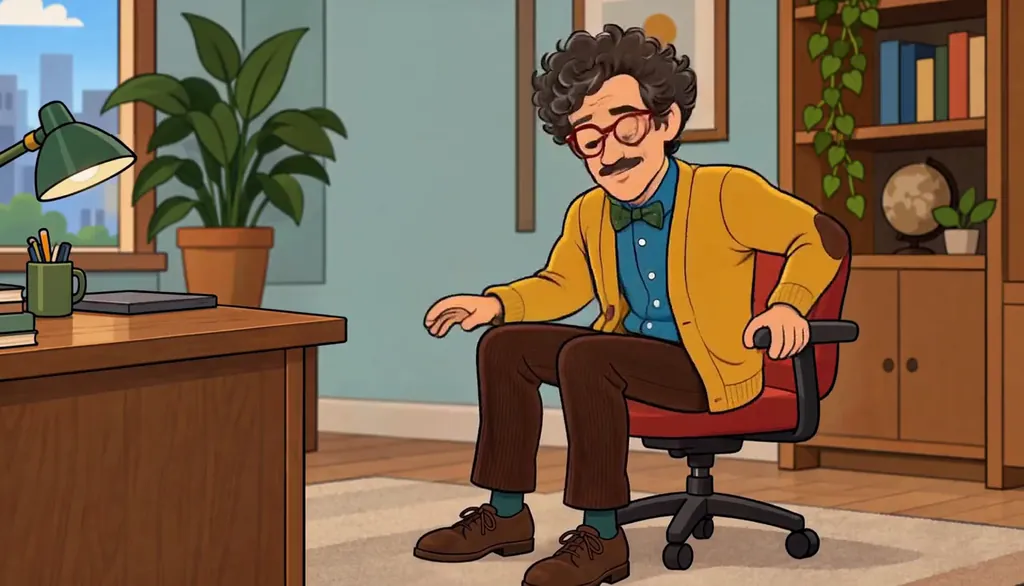
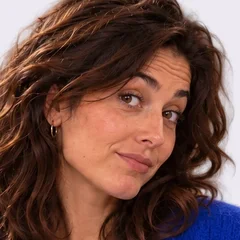
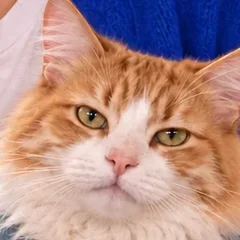
Start with one Character from words, your photo or both, in the style you use most. Keep the picture that looks right: it becomes the reference every later picture and Clip starts from.
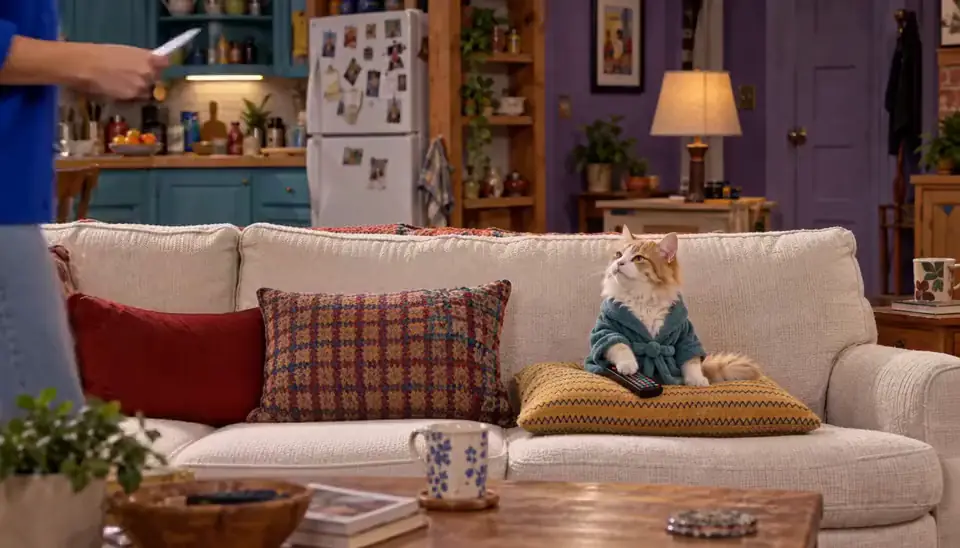
Give the Character two or three details that survive any style: a curly brown bob, a royal-blue cardigan, a cat in a teal bathrobe. Those are what a viewer recognises when the drawing style changes.
Add each style as a Look, not a new Character
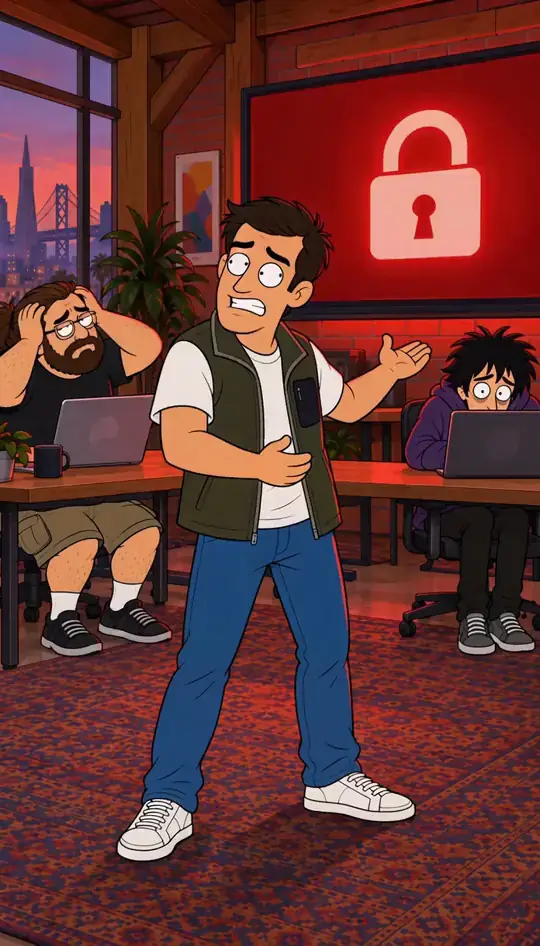
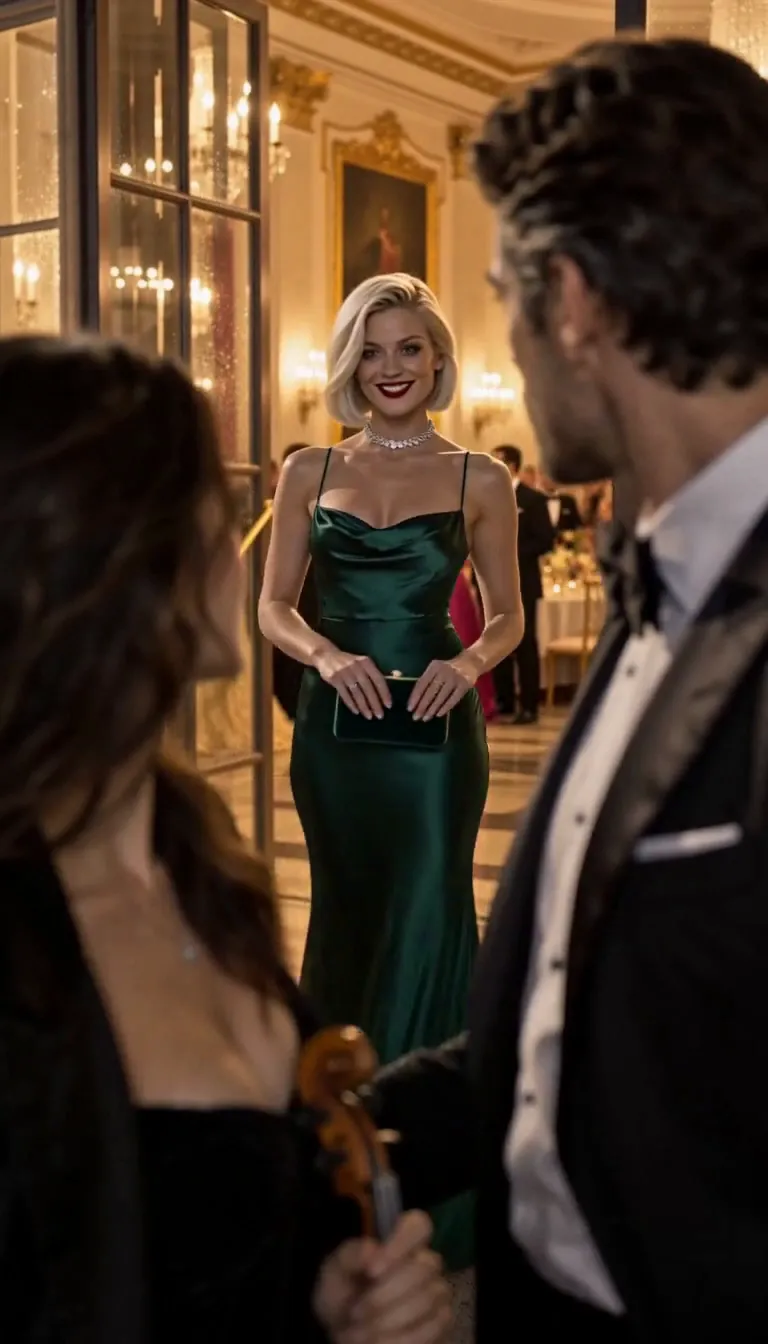
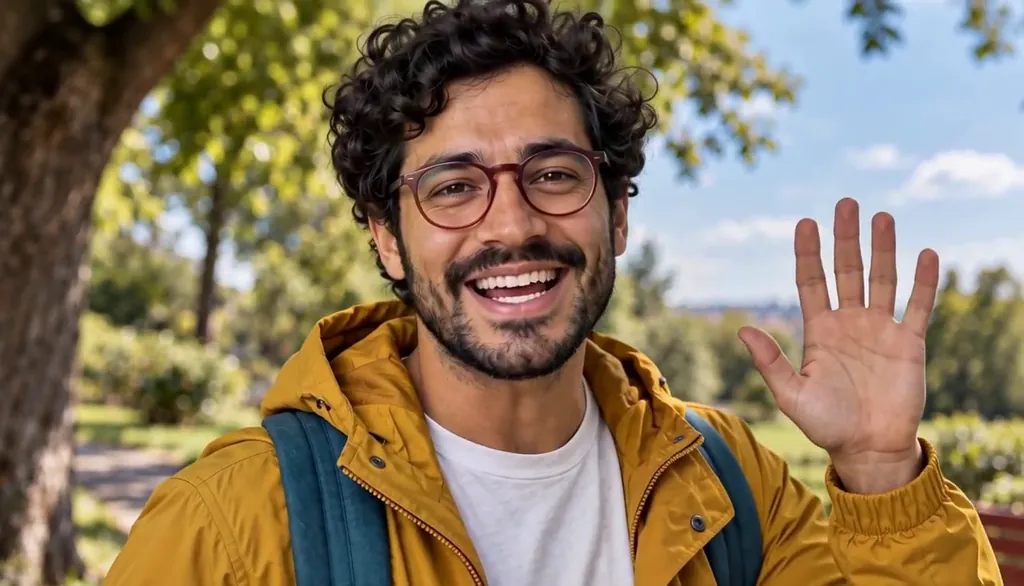
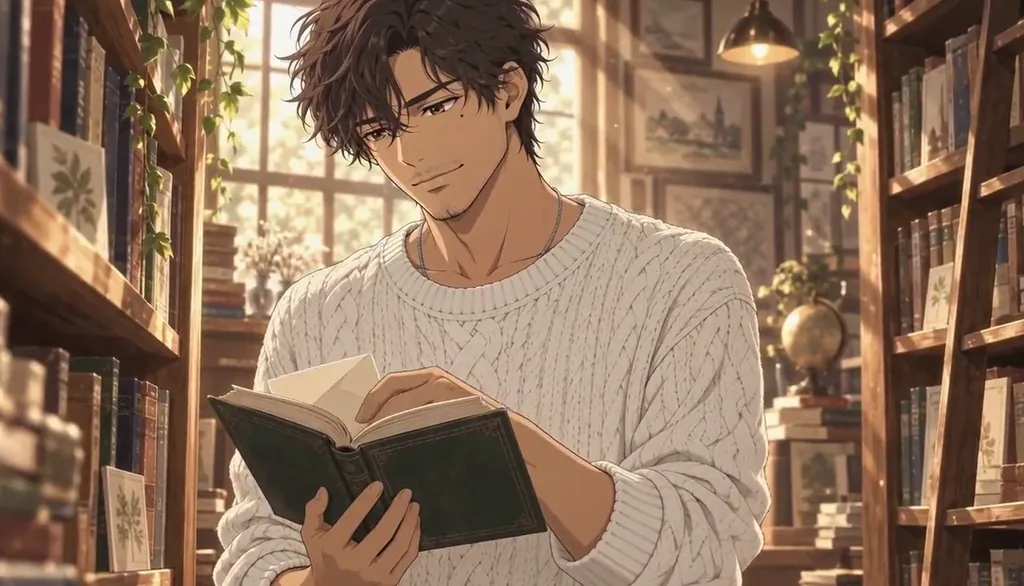
A new Character in a new style is a new face. A Look is the same Character in another outfit or style, kept on that Character in its Looks band. Make an anime Look, a 3D Look and a live-action Look from the same Character and compare them side by side.
Say only what changes: “anime style, same outfit” works better than describing the whole person again.
Check the anchors before you keep a Look
Put the new Look next to the original. Is the hair the same shape? Are the colours the same? Is the prop there? If two anchors drifted, draw it again before you film with it: a Clip carries whatever the Look shows.
Pick one style per series
A World’s Art style is what every Story and Episode in it looks like. Use one style for a series and keep the other Looks for a spin-off, a Slideshow Story or a single Clip. Switching style mid-series reads as a different show.
For faces that drift even in one style, read Character drift, explained.
Common mistakes
Making a new Character for each style. That is a new face every time.
Describing the whole Character again in the style prompt, which invites the model to change it.
Mixing styles inside one series without a reason the story gives.
Questions
Can one AI character be anime and realistic?
Yes. Keep one Character and add an anime Look and a live-action Look. The anchors (hair shape, colours, outfit, a prop) are what keep it recognisable across both.
What is a Look in Character App?
A Look is the same Character in another outfit or style, kept on that Character. Every Look starts from the Character’s saved picture.
Do I pay for each Look?
A Look is a picture, and its price is on the button before you press. A plan member’s pictures are on Nano Banana 2.1 at 6 Credits each.
Can I start from my own photo?
Yes, from your own photo or someone else’s with their permission; identifiable public figures are not allowed. See Use your own photo and likeness.