AI vertical drama maker
An AI vertical drama is a short 9:16 series made with AI instead of a film crew. The hard part is keeping your characters looking like the same people from Scene to Scene, and that is what Character App is built for.
Reference-led continuity can reduce drift, but it cannot guarantee identical results. Review every take and approve the exact Studio quote before paid work.
Official sources: Sensor Tower short-drama report · Character.AI microdrama announcement
Read the vertical drama genre page →
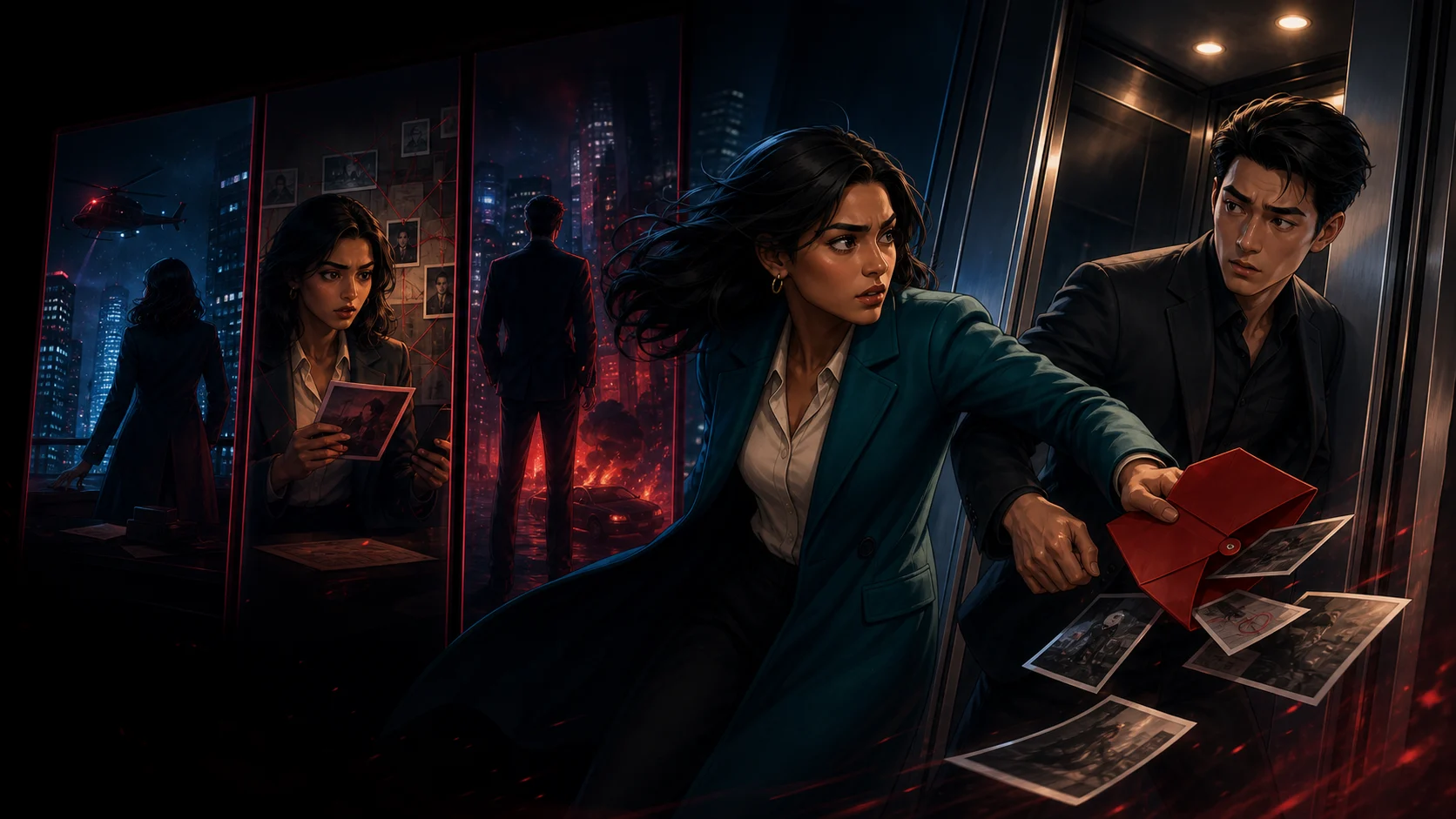
See one vertical episode take shape
Create a vertical drama by shaping a premise with Director, attaching a recurring Cast, choosing 9:16 for a 3–10 Scene Story, drawing each Scene in sequence, filming the takes you keep, and assembling the completed Clips.
The Studio walkthrough below reflects current controls. The separate product-direction cards are concepts, not live tools. Image 2 created the illustrative Scenes; they are not receipts from a paid Character App run.
Original illustrative Cast and Scenes created with Image 2 · August 2026
Five-Scene stylized 3D pilot
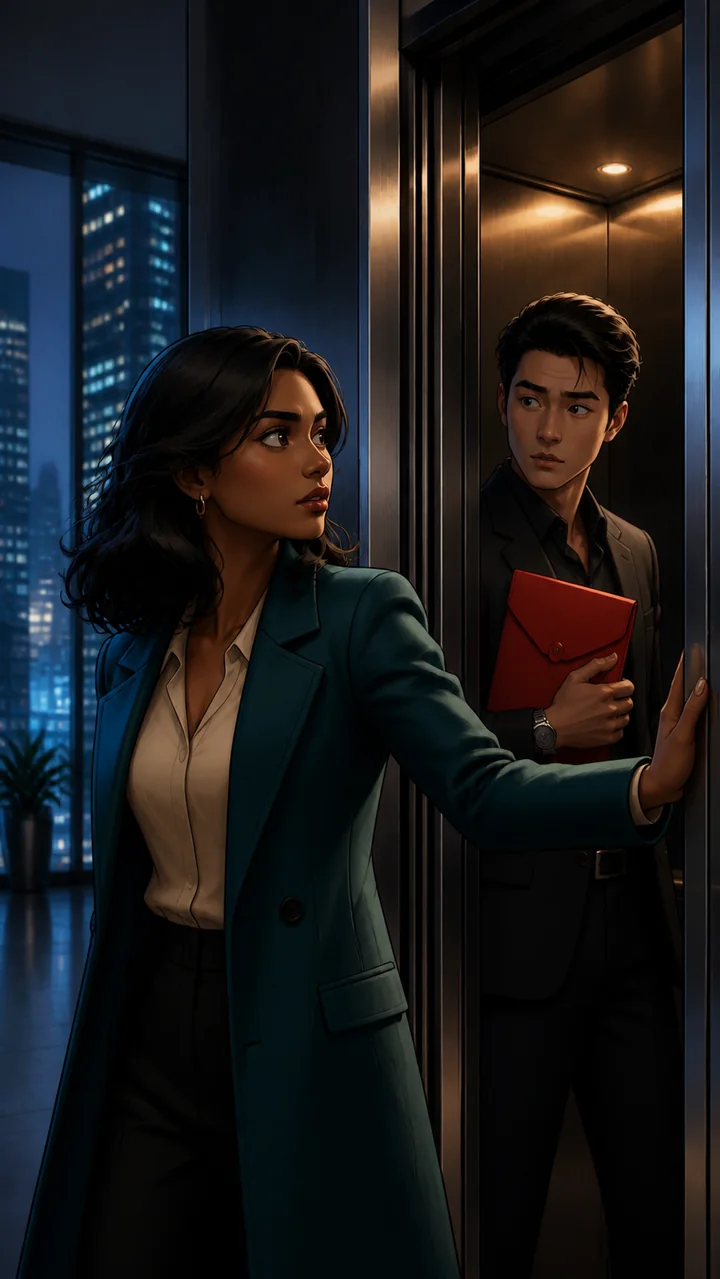
Hook · The elevator stops Maya catches Adrian with a red evidence envelope before the doors close.
Director note: Open inside the conflict. Keep both faces and the red envelope in the center-safe area.
Continuity: Establish Maya, Adrian, the elevator, night lighting, and the red envelope.
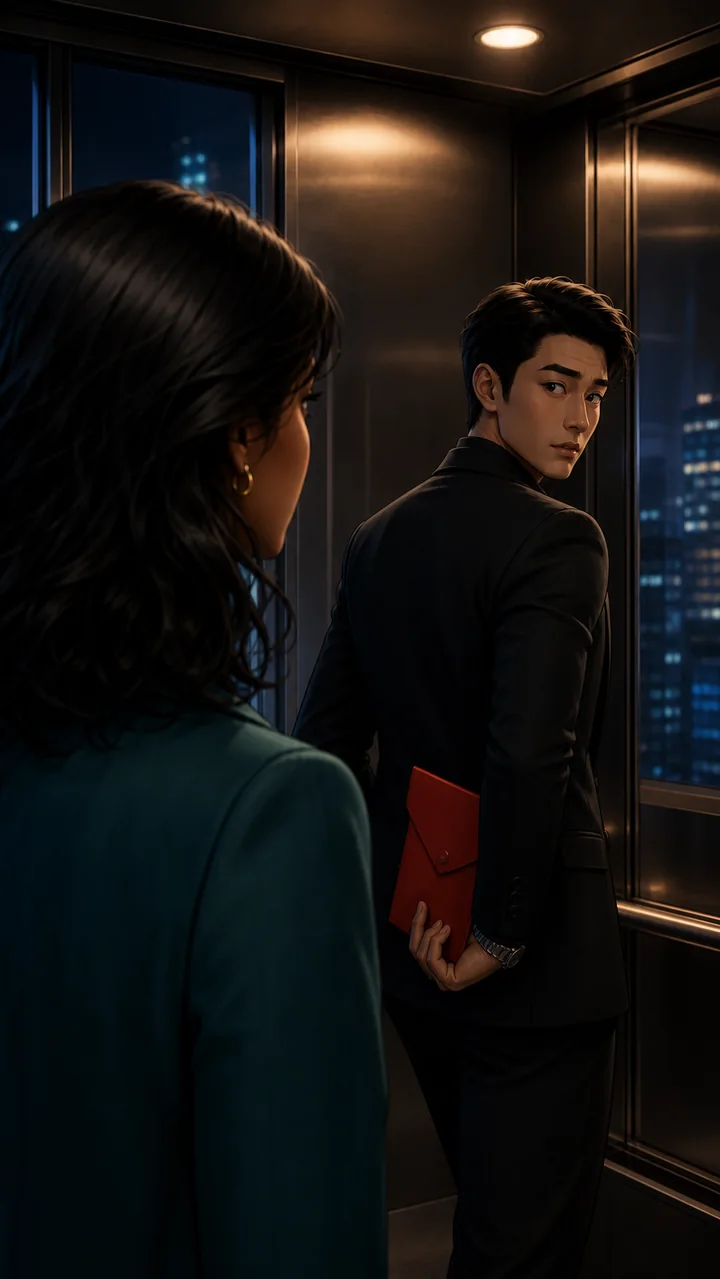
Suspicion · He hides the evidence Adrian conceals the envelope while Maya watches him in the elevator mirror.
Director note: Use an over-the-shoulder angle. Preserve wardrobe, elevator light, and the red prop.
Continuity: Reuse the approved Cast references and the prior Scene for wardrobe and setting continuity.
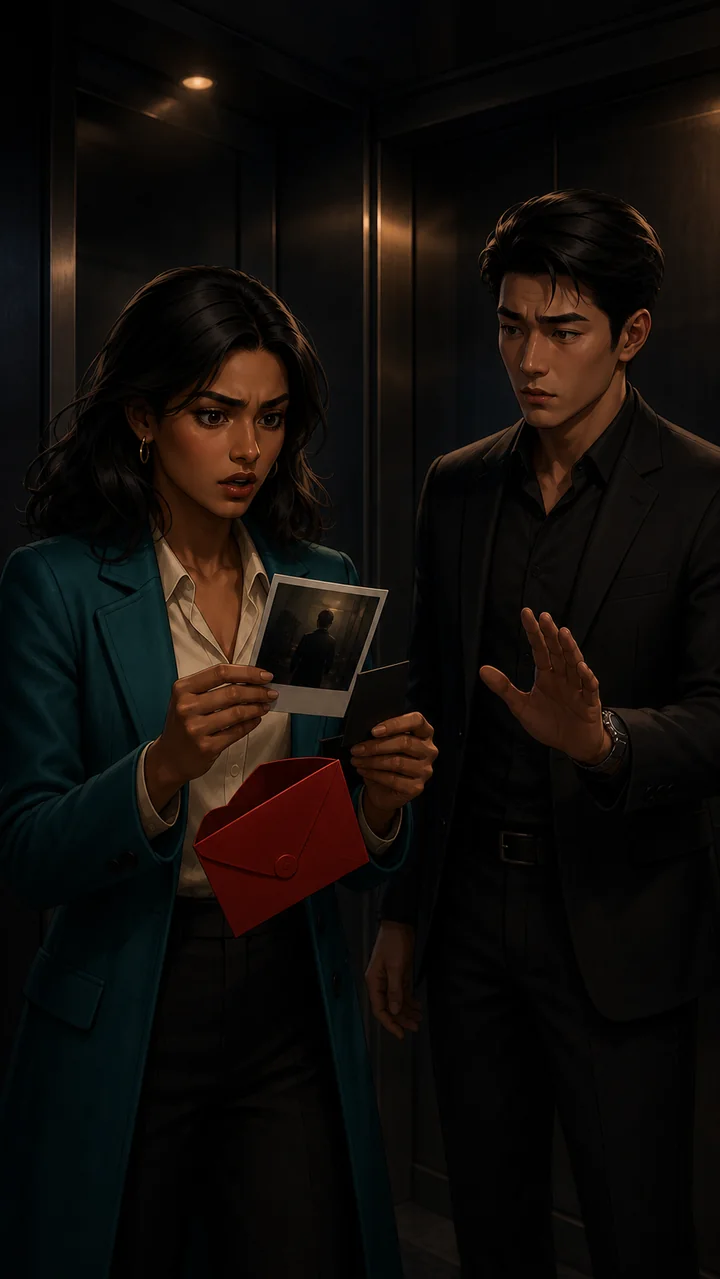
Reveal · The photograph changes everything The envelope contains an old photograph and an access card that Maya recognizes.
Director note: Push into the evidence and Maya’s reaction. Keep Adrian present and readable.
Continuity: Carry the same Cast, prop, elevator, and night palette into the reveal.
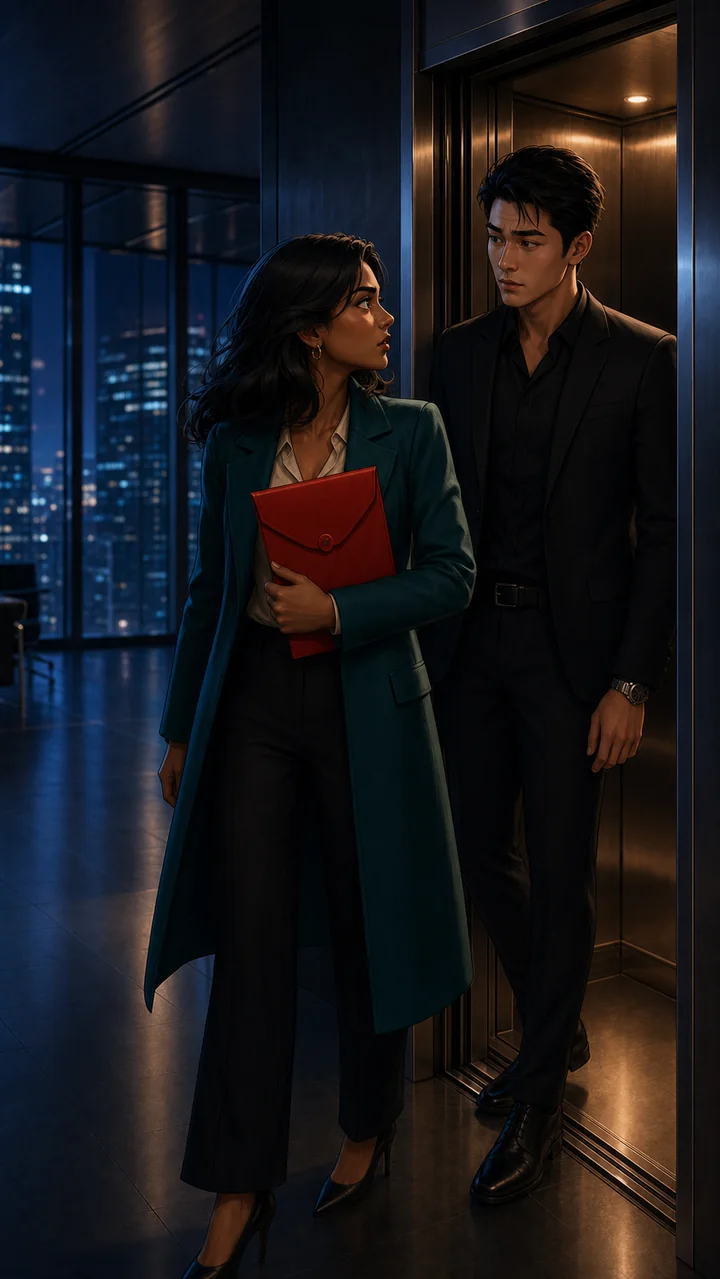
Confrontation · The doors open Maya steps onto the executive floor and demands the truth.
Director note: Move the action into the next set while preserving the elevator as the visual anchor.
Continuity: The location advances, but the Cast, wardrobe, prop, and lighting logic remain connected.
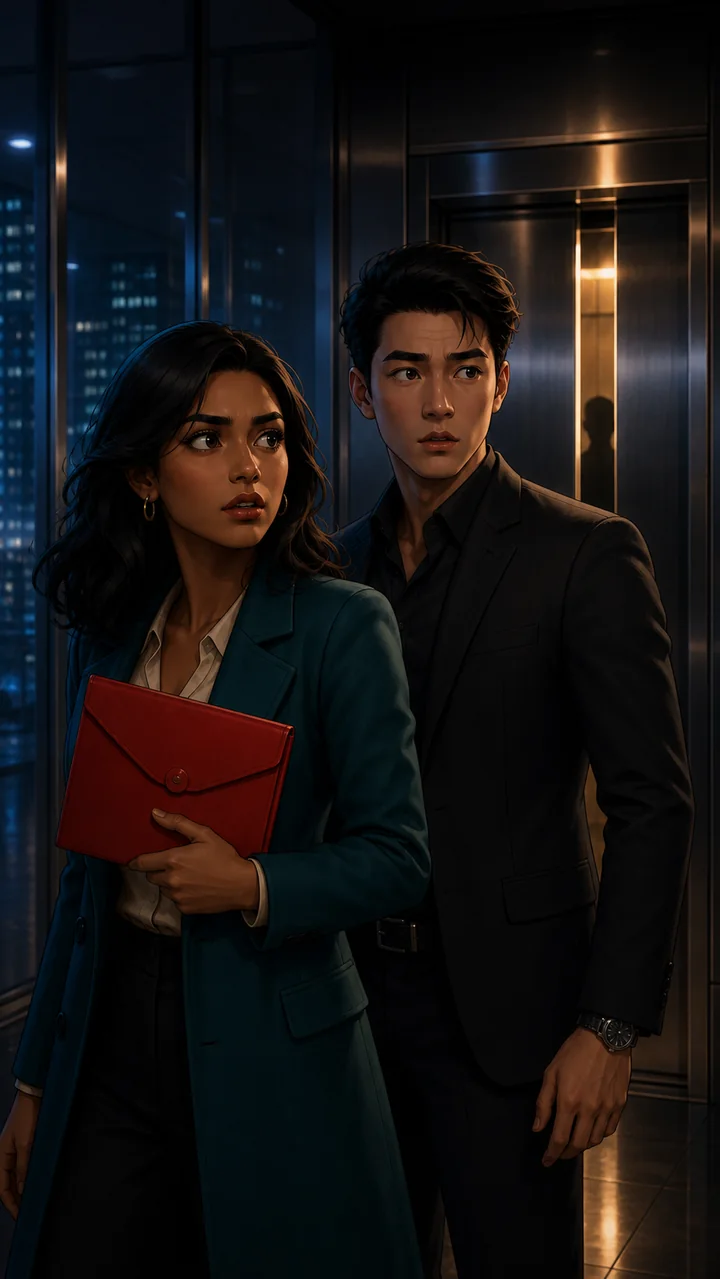
Cliffhanger · They were not alone A silhouette appears between the closing doors as Maya and Adrian turn in alarm.
Director note: End on one unanswered visual question. Do not reveal the third person yet.
Continuity: Resolve the pilot Story with the same Cast and red envelope, then introduce one controlled unknown.
World Look comparison
Stylized 3D drama Dimensional lighting, tactile materials, and expressive adult character acting.
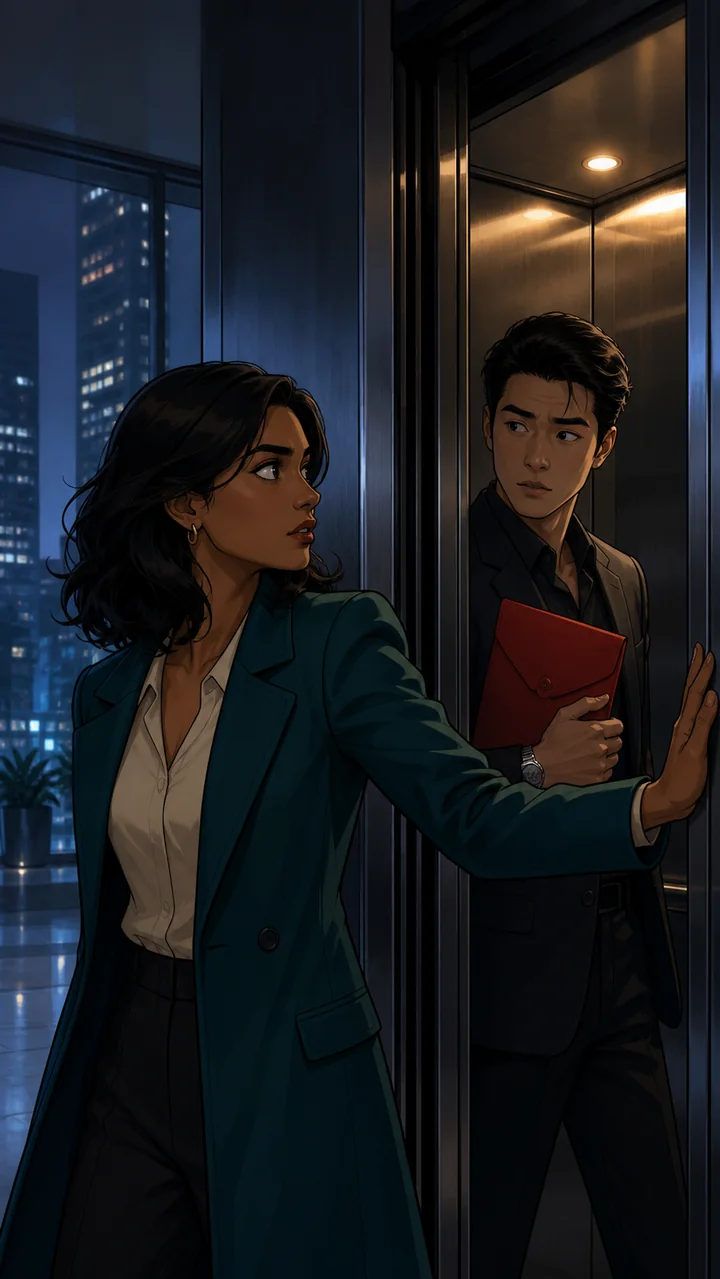
Graphic 2D drama The same Cast, wardrobe, prop, and Scene interpreted through a graphic 2D World Look.
Current Studio workflow
- Director · Available now
Turn the premise into a playable plan
Director is the AI agent inside Studio. Discuss the hook, Cast, franchise arc, tone, and next move before you film anything.
- Private Studio conversation
- World and Bible context
- Creator approves the direction
- Cast + World · Available now
Keep recurring leads and one World Look together
Maya and Adrian retain saved references while the World carries the visual direction and settled facts.
- Approved Cast references
- Stylized 3D World Look
- Reference-led, not guaranteed
- Story setup · Available now
Choose the vertical-drama recipe
Start a 9:16 Drama Story with 3–10 Scenes, pacing, mood, dialogue level, and a cliffhanger.
- 9:16 portrait
- 5 Scenes in this pilot
- Fast pacing · cliffhanger
- Scenes · Available now
Draw in sequence and review every take
Each Scene can carry the prior frame alongside Cast references so continuity has more context.
- Sequential continuity
- Edit and retry individual Scenes
- Reorder before assembly
- Film · Available now
Choose Clip settings Scene by Scene
Use the available Clip model and duration that fit each moment. Studio returns the exact Credits quote before paid filming.
- Per-Scene model choice
- Per-Scene duration
- Server-returned exact quote
- Assembly · Available now
Assemble the completed Clips
Bring the filmed Scenes into one playable Story, then add any platform-specific captions, music, and publishing polish outside the current flow.
- Playable combined cut
- Creator reviews every Clip
- Publishing remains your decision
Product direction
- Script-to-episode breakdown · Concept, not available now
Paste a script or novel excerpt and let Director propose hooks, Scenes, Cast assignments, and cliffhangers for approval.
Turns long-form source material into a reviewable Story plan without bypassing creator judgment.
- Season board · Concept, not available now
Arrange many Stories as episodes, track open threads, and see which Cast and Bible facts each episode needs.
The current product makes one Story at a time; a season view would make release cadence and long arcs visible.
- Continuity review · Concept, not available now
Compare a take with approved Cast references and the prior Scene, then flag face, wardrobe, prop, or set drift for review.
Reference-led continuity helps, but a deliberate review step makes generative variation easier to manage.
- Release planner · Concept, not available now
Prepare caption, cover, music, rights, and platform checklists beside each finished episode.
Clip assembly is live today; platform-specific finishing and publishing still need an explicit handoff.
Build Your Drama Series
What a vertical drama is
New to the format? Start with the definition: what a vertical drama is and how its episodes work.
Vertical drama genre page
Example premises and Scenes for the genre, plus a quick way to start your own.
AI short drama generator
Making one short drama instead of a recurring series? Start with the AI short drama generator.
Direct every scene
A vertical drama is only as gripping as its Scenes. Shape each one by hand in the interactive story creator.
Plan the narrative
Map episodes scene by scene with prompts, camera direction, and character assignments before you render.
Create your cast
Design the recurring characters that anchor your whole series, from a photo or a text prompt.
Build the franchise World
Give the recurring Cast a World, settled Bible facts, conflicts, locations, and room for the next episode.
Plan the production cost
Adjust Scene count, Clip duration, draft Images, and illustrative rates before you approve any paid work.
Review Cast continuity
Compare recurring Cast across Scenes and World Looks, with an honest checklist for visual drift.
Frame for a phone
Use the interactive 9:16 guide to keep faces, reactions, evidence, and later captions readable.
Write a hook that carries forward
Study 30 original opening and cliffhanger pairs across romance, revenge, thriller, family, and workplace Stories.
Turn the script into a shot list
Copy a 9:16 production template with framing, Cast, prop, duration, and continuity checks for every Scene.
Keep the series Bible
Settle the World, recurring Cast, relationships, props, open loops, and episode arc before production starts.
From pilot to full series in three steps
The current workflow makes one short episode as a Story. Reuse the World and Cast when you begin the next episode.
Cast your recurring leads
Create or select the Cast, then keep the approved references and World Look beside the Story. References guide the next take; they do not remove the need to review it.
Break the episode into scenes
Start a Story with 3–10 Scenes. Choose 9:16, Drama, pacing, mood, dialogue level, and a cliffhanger ending, then review each Scene.
Draw, film, and assemble
Draw Scenes sequentially so the previous frame can support continuity. Film the takes you keep, choose Clip settings per Scene, and assemble the completed Clips.
What an AI vertical drama is.
An AI vertical drama is a series of short 9:16 episodes made with AI tools instead of actors on a set. You write the story, choose the cast, and review what the AI makes.
The AI part is the easy part. The hard part is keeping the same characters recognizable from one Scene to the next, because a series only works when viewers know who they are watching.
Vertical drama is a format, not a filter.
Vertical drama borrows the serialized structure of soap operas and telenovelas and rebuilds it for the phone: short 9:16 episodes designed to be watched back to back.
In Character App, choose 9:16 when you start the Story. Compose faces, reactions, and the important prop for portrait rather than assuming a landscape frame will crop cleanly later.
A cast that survives the whole series.
What makes a series feel like a series is recognition. The audience has to know the protagonist on sight in episode nine the same way they did in the pilot. One-off AI video requests can lose that continuity because every new output begins from fresh context.
Character App makes the Cast part of the production context. Saved references and the previous Scene can guide a new take, reducing drift while leaving the creator responsible for review.
- Reusable Cast members for each new Story in the World
- Approved references help guide faces, wardrobe, and visual direction
- Assign recurring Cast members to the Scenes where they appear
- Sequential Scene drawing can include the previous frame for continuity context
Build a Story World that can outlive the pilot.
A durable vertical-drama franchise needs more than an episode prompt. The World holds the premise and places, the Cast carries recurring relationships, and the Bible keeps the facts you have already settled available to the next Story.
Director is the AI agent inside your private Studio. Ask it to develop the franchise promise, pressure-test a character arc, find a stronger cliffhanger, or propose the next Scene. It works from the World context, while you review and approve the direction.
- One World for the franchise premise, locations, rules, and tone
- Recurring Cast with recognizable roles and relationships
- Bible context for settled facts and long-running conflicts
- Director help for episode ideas, arcs, and the next Scene
One cast, any genre.
Vertical-drama audiences chase genre — revenge arcs, forbidden romance, sci-fi, and fantasy epics. Character App offers a broad stylized catalog, so the same recurring Cast can headline an anime feud, a cartoon satire, a stylized 3D adventure, a painterly fantasy, or a comic-book caper.
Because style lives in the Cast member and the Scene direction, you can pivot the genre of your series without rebuilding your cast. Start a second series in a completely different World with the same leads, or keep one franchise tonally consistent from first episode to last.
Director plans it, you draw first, then film the takes you keep.
Director is the AI agent inside Studio. Tell it the premise and the cast and it helps you break the episode into Scenes, sharpen the hook, and find a cliffhanger. You approve the plan before anything is drawn.
Draw each Scene as an Image first. An Image costs less than a Clip, so you can fix a face, a prop, or a pose before you spend on video. Then film only the Scenes you keep and assemble the completed Clips into one Story.
The price is shown before you press.
Every paid step shows its price before you approve it. A free account can start building, and a plan adds Credits for Clips and Film. Plans start at $19.99/mo with 800 Credits. See /pricing for what each plan includes.
AI-made or human-shot: what changes.
A human-shot drama has real actors, so the faces stay the same by default and the performances come from people on a set. It also needs a crew, locations, and a shoot schedule.
An AI vertical drama trades the shoot for a workflow. You do not need actors or locations, but you do have to steer the cast: saved references and the previous Scene guide each take, and you review every take for drift. Neither route is better for every story. Pick AI when you want to move fast and you are happy to direct. Pick a shoot when you want real performances.
Draft cheap, finish cinematic, publish vertical.
Not every Scene needs the highest-cost model. Draft episodes with a lower-cost current option, then choose a higher-cost option only for selected hero Scenes. The Story editor supports per-Scene model choice.
Choose 9:16 for the Story, assemble completed Clips into one playable Story, then add any platform-specific caption, music, cover, and publishing polish. Current plans and exact Credits quotes live at /pricing and inside Studio.
FAQ
- What is an AI vertical drama?
- An AI vertical drama is a series of short 9:16 episodes made with AI tools instead of a film crew. You write the premise, pick the cast, and review every Scene. For the format itself, see /blog/what-is-a-vertical-drama.
- What is a vertical drama?
- A vertical drama is a series of short 9:16 episodes designed to be watched back to back on a phone. In Character App, choose 9:16 when you start the Story and review the portrait composition of every Scene.
- How do I keep the same cast across every episode?
- Create or select each Cast member and keep the approved references with the World. Those references plus the prior Scene can reduce drift, but results vary and every take still needs review.
- Can AI keep the same face across scenes?
- Often, with help, but not every time. Saved Cast references and the previous Scene guide each take, which reduces drift. Results still vary, so review every take and redo the ones that drift. The continuity guide at /blog/vertical-drama-character-consistency shows what to check.
- What do I need to start?
- An account and an idea. A photo of the character you want to cast helps but is optional. A free account can start building, and a plan adds Credits for Clips and Film. Plans start at $19.99/mo with 800 Credits, and the price shows before you press. See /pricing.
- Can I use my own photo?
- Yes, when you have the rights and the permission of anyone in it. A photo, drawing, or 3D render can become the visual reference for a Cast member. Only use a real person’s photo if it’s you or you have their permission.
- Can I publish it?
- Yes. Export the finished video from Studio and post it where you choose. Check each platform's rules for AI-made video before you upload. For platform options, see /blog/where-to-publish-vertical-drama.
- Can the AI agent help me build a vertical-drama franchise?
- Yes. Director is the AI agent inside Studio. Give it the World, recurring Cast, and settled Bible context, then ask it to develop the franchise premise, character arcs, episode ideas, cliffhangers, or the next Scene. You review and approve the direction.
- How many Scenes can one Story have?
- The current Story setup offers 3, 4, 5, 8, or 10 Scenes. Treat one Story as one short episode, then begin the next Story with the same World and Cast context.
- Which genres can I make?
- Any genre within the stylized catalog. The same Cast can headline anime, cartoon, stylized 3D, painterly fantasy, or comic-book stories — visual direction lives in the Cast member and Scene prompt, so switching genres does not mean rebuilding your characters.
- What does it cost to produce a series?
- The total depends on how many Images and Clips you keep, each Clip duration, and the current model. Use lower-cost options for drafts where appropriate; Studio returns the exact Credits quote before each paid action. See /pricing for current plan terms.